Chapter 9: Settings
Configure your app settings and preferences to optimize search functionality.
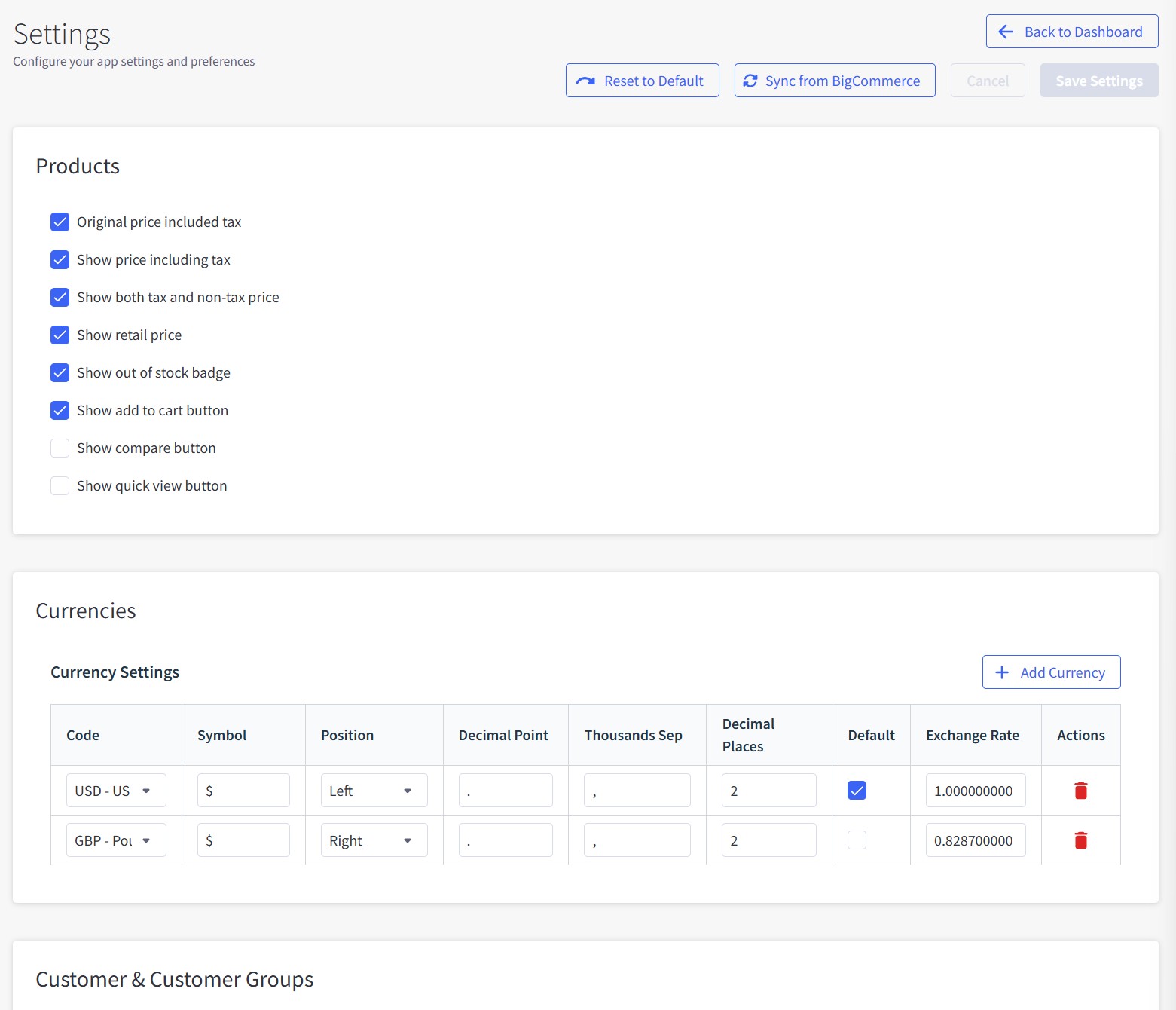
Overview
The Settings page allows you to configure core search behavior, product display options, currency settings, customer groups, filters, and indexing preferences.
Main Functions:
- Configure product display options and pricing
- Manage currencies and exchange rates
- Set up customer groups and guest access
- Configure filter selectors and behavior
- Adjust search parameters and sorting
- Enable semantic search and automatic indexing
Interface Elements
Header Section
Navigation:
- ← Back to Dashboard - Return to main dashboard
- 🔄 Reset to Default - Restore all settings to default values
- 🔄 Sync from BigCommerce - Update settings from BigCommerce store
- Save Settings - Apply current configuration
Products Section
Product Display Settings
Checkbox Options:
- ✅ Original price included tax - Show tax-inclusive prices
- ✅ Show price including tax - Display prices with tax included
- ✅ Show both tax and non-tax price - Display both tax-inclusive and tax-exclusive prices
- ✅ Show retail price - Display manufacturer's suggested retail price (MSRP)
- ✅ Show out of stock badge - Mark out-of-stock products with badges
- ✅ Show add to cart button - Include "Add to Cart" buttons in search results
- ⬜ Show compare button - Enable product comparison functionality
- ⬜ Show quick view button - Add quick preview buttons for products
Purpose:
- Control what product information appears in search results
- Customize pricing display for different customer types
- Enable or disable interactive buttons on product listings
Currencies Section
Currency Settings
Add Currency Button:
- + Add Currency - Add new currency support
Currency Table Columns:
- Code - Currency code (e.g., USD, GBP)
- Symbol - Currency symbol ($, £)
- Position - Symbol position (Left/Right)
- Decimal Point - Decimal separator (. or ,)
- Thousands Sep - Thousands separator (, or .)
- Decimal Places - Number of decimal places (usually 2)
- Default - Set as default currency (checkbox)
- Exchange Rate - Conversion rate to base currency
- Actions - 🗑️ Delete currency
Current Currencies:
- USD - US - Default currency ($, Left position, 1.000000000 rate)
- GBP - Pound - Secondary currency (£, Right position, 0.828700000 rate)
Purpose:
- Support multiple currencies for international customers
- Configure currency display format and positioning
- Set exchange rates for accurate pricing conversion
💡 Sync Currency
Use "Sync from BigCommerce" button to automatically import currencies already configured in your BigCommerce store settings.
Customer & Customer Groups Section
Guest Customer Configuration
Guest Customer Group ID:
- Field: Numeric input (default: 0)
- Description: Customer group ID for guest shoppers (default: 0)
- Purpose: Define which customer group non-logged-in visitors belong to
Customer Groups Table
Synced from BigCommerce indicator shows data source
Table Columns:
- ID - Customer group identifier (e.g., 0)
- Name - Group name (e.g., "Guest")
- Default - Whether this is the default group (-)
- Guest Group - Marked as guest group (👤 Guest icon)
Info Note:
💡 Sync Customer Groups
Customer groups are managed in BigCommerce admin panel. Use "Sync from BigCommerce" button to update this list from your store settings.
Purpose:
- Configure customer group access and pricing
- Set default group for guest customers
- Sync customer group data from BigCommerce
Filters Section
Filter Container Selectors
Filters container selector:
- Field: Text input with default values
- Value:
#faceted-search-container, papasearch-sidebar - Purpose: CSS selectors for where filters appear on storefront
Products container selector:
- Field: Text input with default values
- Value:
#product-listing-container, papasearch-content - Purpose: CSS selectors for where search results appear
⬜ Ajax category link:
- Checkbox: Enable AJAX category navigation
- Purpose: Load category pages without full page reload when selecting category in filter
- Benefits: Faster category browsing, maintains current page state
- Limitation: Category descriptions and widgets may not update since the app only controls product display
📝 AJAX Category Navigation
Enable this feature if you want category links in filters to load corresponding products without refreshing the entire page. However, category descriptions may not update because the app only controls product display, not widgets and other category-related sections.
Purpose:
- Define where filters and products display on your theme
- Enable smooth category navigation without page refreshes
- Integrate with existing theme structure
Search Section
Search Configuration
⬜ Disable Search:
- Checkbox: Turn off PapaSearch on the storefront
- Purpose: Return your store to BigCommerce's original search behavior without uninstalling the app
Default products per page limit:
- Field: Numeric input (default: 24)
- Purpose: Number of products shown per page in search results and category listings
Product listing default sort:
- Dropdown: Sort order options
- Default: "Relevance"
- Options: Relevance, Best Selling, Newest, Oldest, Price: Low to High, Price: High to Low, Name: A to Z, Name: Z to A
- Purpose: How products are ordered when shoppers browse category or brand pages without a search query
Search results default sort:
- Dropdown: Same options as above
- Default: "Relevance"
- Purpose: How products are ordered when shoppers do enter a search query, on any page
📝 Two separate sort settings
Browsing and searching are configured independently. A common setup is Best Selling for category browsing and Relevance for search results.
📊 About Best Selling
Best Selling uses each product's lifetime total sold, refreshed periodically. It may lag very recent orders and does not account for refunds.
Semantic match threshold (only works when semantic search enabled):
- Field: Numeric input (default: 1.5)
- Range: 0.1 to 3.0
- Purpose: How closely a product must match the meaning of a search to be included on that basis alone
- Lower values: Add more loosely related products
- Higher values: Add only very close matches
⚠️ This setting only affects meaning-based matching
Products found by keyword, SKU or brand are never removed by this setting. Raising the threshold narrows the extra products that semantic search contributes; it does not hide products that matched the words the shopper typed.
Checkbox Options:
- ⬜ Redirect search page - Redirect shoppers from BigCommerce's default search page to the PapaSearch results interface, so every search uses the enhanced results
- ⬜ Suggest products when searching - Show instant product suggestions and autocomplete as shoppers type
Excluded query parameters:
- Field: Comma-separated list of parameter names
- Purpose: Strip tracking and unrelated URL parameters before they reach search and filter requests
- Example:
section,setCurrencyId,utm_source,utm_medium,utm_campaign,utm_content,utm_term
Purpose:
- Control search result display and ordering
- Tune how much meaning-based matching contributes
- Enable additional search features like suggestions
Indexing Section
Semantic Search
Enable semantic search:
- ✅ Checkbox: Enable AI-powered semantic search
- Purpose: Understand search intent and meaning, not just keywords
- Benefits: Better results for natural language queries, multilingual support, spelling error tolerance
- Features: Handles typos, synonyms, different languages, and contextual understanding
🤖 Semantic Search Examples
- Spelling Errors: "laptp" → finds "laptop"
- Synonyms: "mobile phone" → finds "smartphone", "cell phone"
- Multilingual: "téléphone" (French) → finds "phone" products
- Context: "red dress for party" → understands style and occasion
Webhook Management
Enable hooks to update when products/categories change (includes inventory updates):
- ⬜ Checkbox: Automatic sync when BigCommerce data changes
- Description: "Creates 15 webhooks: 5 for products (including inventory), 6 for categories (global + channel-specific), and 4 for product assignments. Click 'Save Settings' to install webhooks automatically."
Webhook Status Tables:
📦 Products (0/5 (0%)):
store/product/created- Product created - ❌ Not installedstore/product/updated- Product updated - ❌ Not installedstore/product/deleted- Product deleted - ❌ Not installedstore/product/inventory/updated- Product inventory updated - ❌ Not installedstore/product/inventory/order/updated- Product inventory updated by order - ❌ Not installed
📁 Categories (0/6 (0%)):
store/category/created- Category created (global) - ❌ Not installedstore/category/updated- Category updated (global) - ❌ Not installedstore/category/deleted- Category deleted (global) - ❌ Not installedstore/channel/1/category/created- Category created (channel 1) - ❌ Not installedstore/channel/1/category/updated- Category updated (channel 1) - ❌ Not installedstore/channel/1/category/deleted- Category deleted (channel 1) - ❌ Not installed
🔗 Product Assignments (0/4 (0%)):
store/channel/1/product/assigned- Product assigned to channel 1 - ❌ Not installedstore/channel/1/product/unassigned- Product unassigned from channel 1 - ❌ Not installedstore/channel/1/category/product/assigned- Product assigned to category (channel 1) - ❌ Not installedstore/channel/1/category/product/unassigned- Product unassigned from category (channel 1) - ❌ Not installed
Auto Update Settings
Auto check update interval:
- Dropdown: Update frequency options
- Default: "1 hour"
- Options: Disabled, 5 minutes, 10 minutes, 15 minutes, 30 minutes, 1 hour, 3 hours, 6 hours, 12 hours, 1 day
- Purpose: How often the app checks BigCommerce for products changed since the last sync
⚠️ 'Disabled' turns off scheduled checking
Disabled is the first option in the list, not the fastest one. Choosing it means the app only updates when a webhook arrives. If a webhook is ever missed, those products stay stale until you re-index manually. Leave webhooks enabled if you select Disabled.
Purpose:
- Enable automatic product and category synchronization
- Monitor webhook installation status
- Set fallback update intervals for data freshness
Settings Operations
Save Settings
- Configure desired options in each section
- Click Save Settings button in header
- Settings are applied immediately
- Webhooks are automatically installed if enabled
Reset to Default
- Click 🔄 Reset to Default button in header
- Confirm action in warning dialog
- All settings return to recommended defaults
- You will need to reconfigure custom settings
Sync from BigCommerce
- Click 🔄 Sync from BigCommerce button in header
- Updates customer groups, currencies, and other BigCommerce data
- Ensures settings match your current BigCommerce configuration
⚠️ Important
Changes are applied immediately. Review settings carefully before saving.
Recommended Settings
New Store Setup:
- Enable semantic search: ✅ For better search understanding
- Products per page: 24 (good balance)
- Product listing default sort: Best Selling
- Search results default sort: Relevance
- Semantic match threshold: 1.5 (balanced relevance)
- Enable webhooks: ✅ For automatic updates
High-Traffic Stores:
- Enable webhooks: ✅ For real-time updates
- Auto check interval: 1-3 hours
- Products per page: 12-18 (faster loading)
- Semantic match threshold: 1.0-1.2 (more loosely related products)
B2B Stores:
- Show both tax and non-tax price: ✅
- Customer groups: Configure for wholesale vs retail
- Products per page: 24-48 (comparison shopping)
- Product listing default sort: Name: A to Z
- Search results default sort: Relevance
Troubleshooting
Webhooks Not Installing
- Problem: Red "❌ Not installed" status after saving
- Solution: Check BigCommerce API permissions, try saving settings again
- Alternative: Use auto check update interval as fallback
Search Results Not Updating
- Problem: New products don't appear in search
- Solution: Enable webhooks or reduce auto check update interval
- Check: Verify semantic search is working properly
Filter Display Issues
- Problem: Filters not appearing correctly
- Solution: Update filter container selectors to match your theme
- Help: Contact support for theme-specific selector assistance
Currency Conversion Problems
- Problem: Incorrect pricing in different currencies
- Solution: Update exchange rates, verify decimal places and separators
- Check: Ensure BigCommerce currency settings match app settings
Next Chapter: Plans & Pricing - Understand subscription options and manage billing.