Chapter 15: Merchandising
Decide which products shoppers see first. Merchandising rules let you boost, bury or hide products whenever a shopper searches for a keyword or opens a category page — for example, put this season's best seller on top for "jacket", push discontinued items to the end, or keep a product out of results for a search where it does not belong.
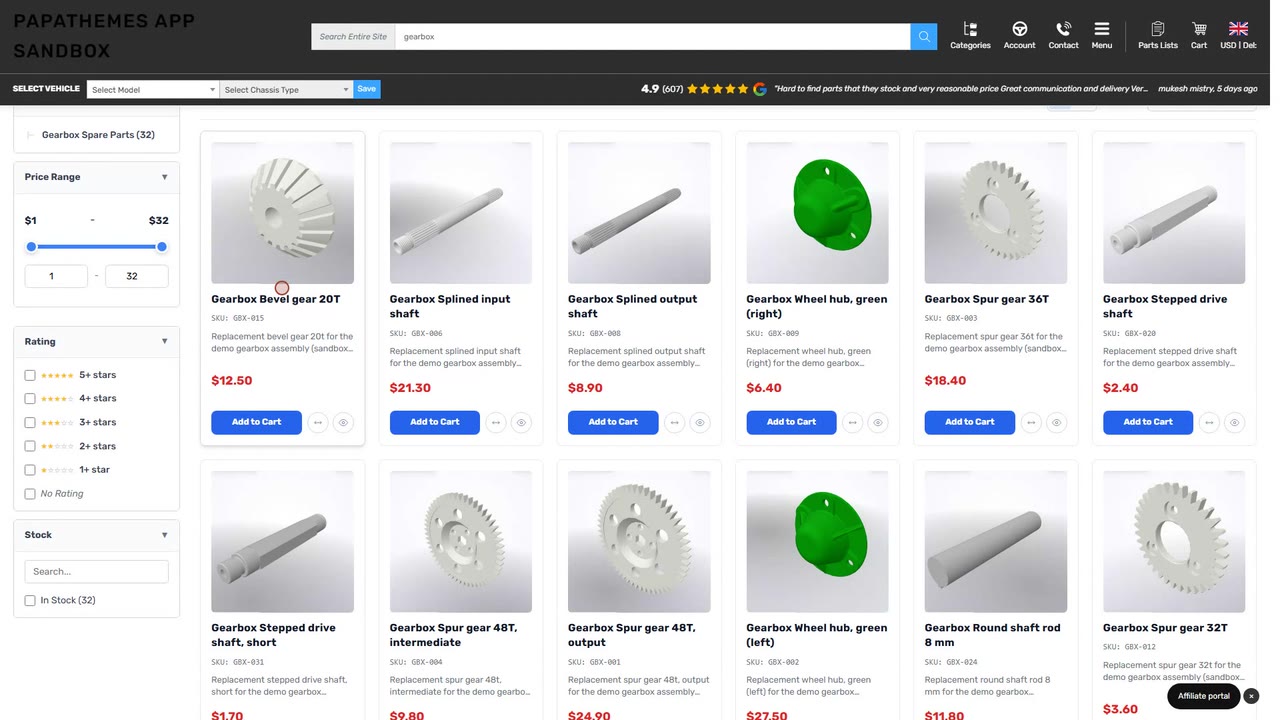
Open the Merchandising Page
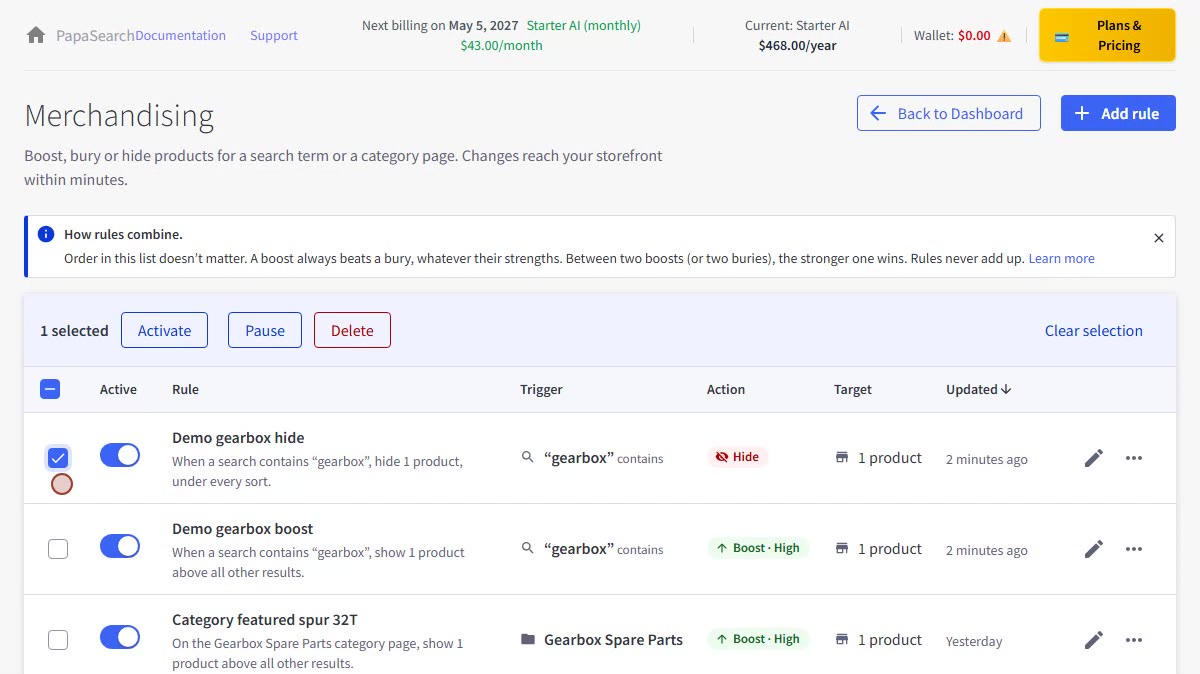
From your Dashboard, click the Merchandising button. The page lists your rules. Each row describes in one sentence what the rule does, with its trigger, action, target, last update and an on/off switch. You can have up to 200 rules per storefront channel; the counter above the list shows how many you use.
- Type in Search rules to find a rule by name, keyword or category.
- Use the Trigger, Action and Status filters to narrow the list.
- Tick several rules to Activate, Pause or Delete them together.
- The How rules combine note at the top explains what happens when several rules apply to one product. Close it once you have read it.
Create a Rule
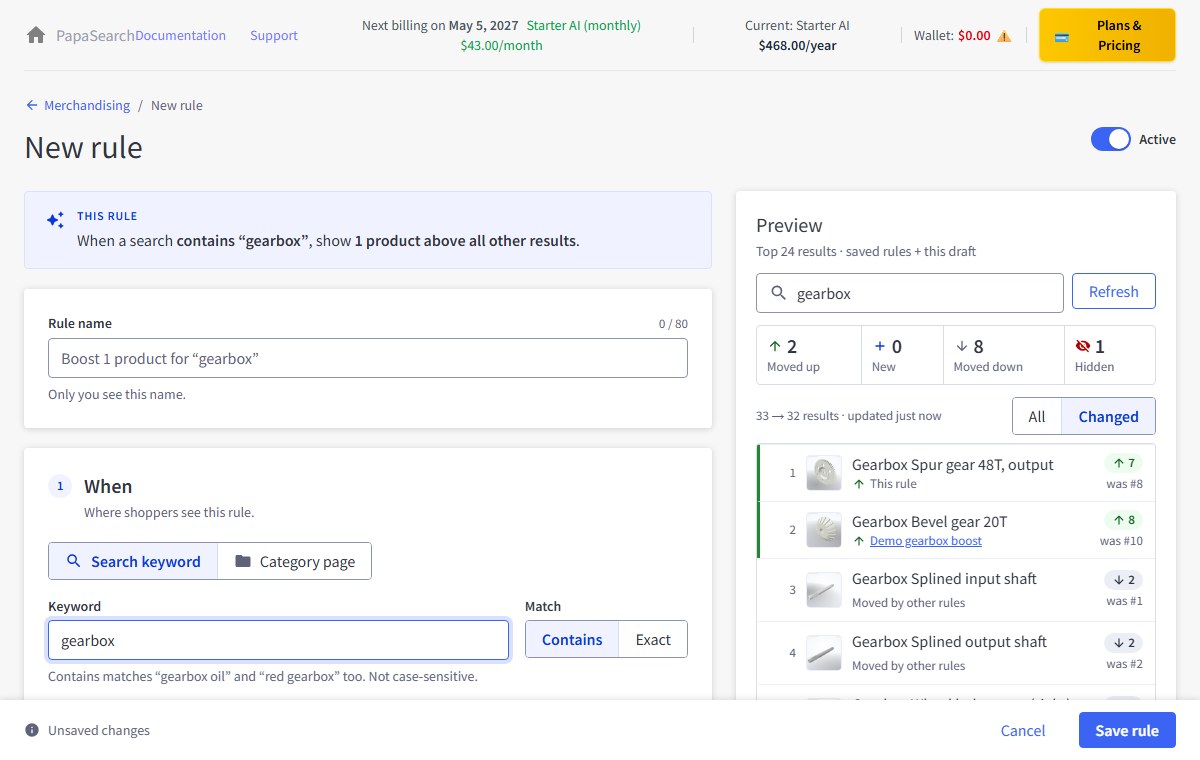
Click Add rule. The rule editor opens as its own page, with a live Preview on the right. Fill in:
| Field | What it does |
|---|---|
| Rule name | Your own label, shown in the rules list. |
| When | Search keyword — the rule applies to searches. Category page — the rule applies when shoppers open one specific category page. |
| Keyword / Match | For a search rule. Contains applies to any search that includes the keyword (a rule for light also applies to "led light bar"). Exact applies only when the whole search is the keyword. |
| Do | Boost, Bury or Hide. |
| Strength | For Boost and Bury: High, Medium or Low (see below). |
| Which products | Up to 100 Products (search by name or SKU), or whole Brands, or Categories. |
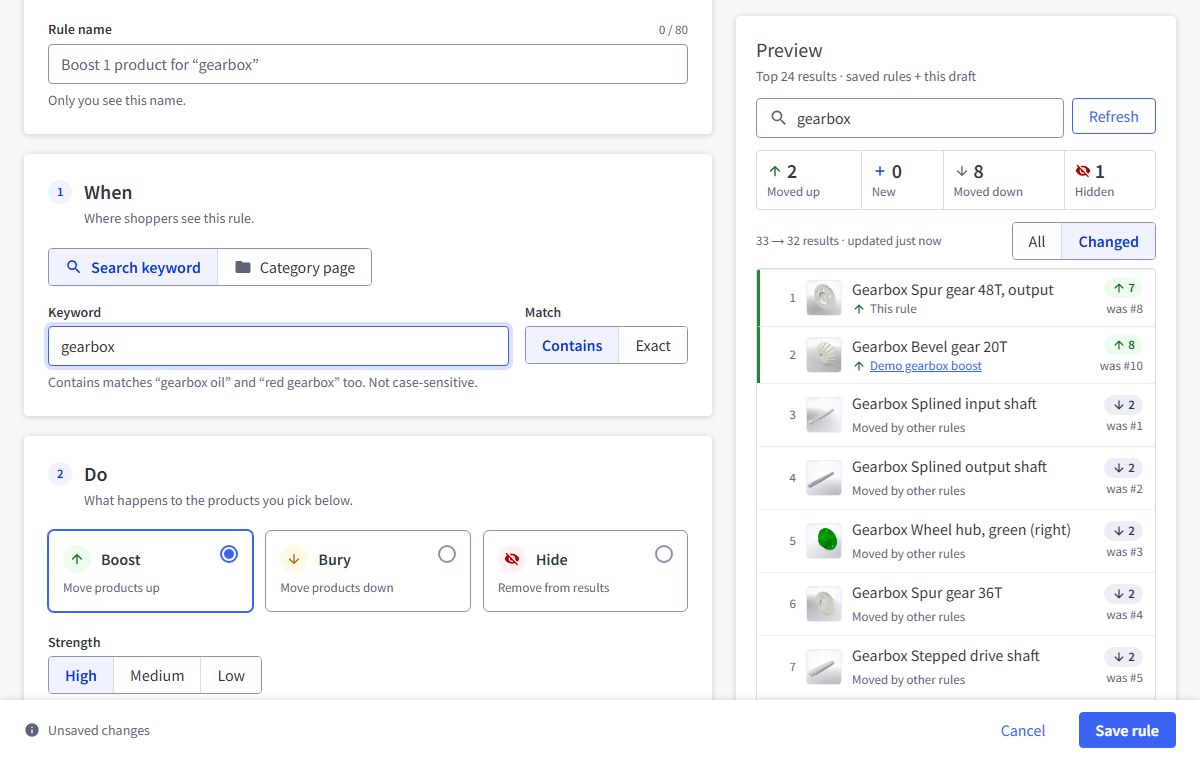
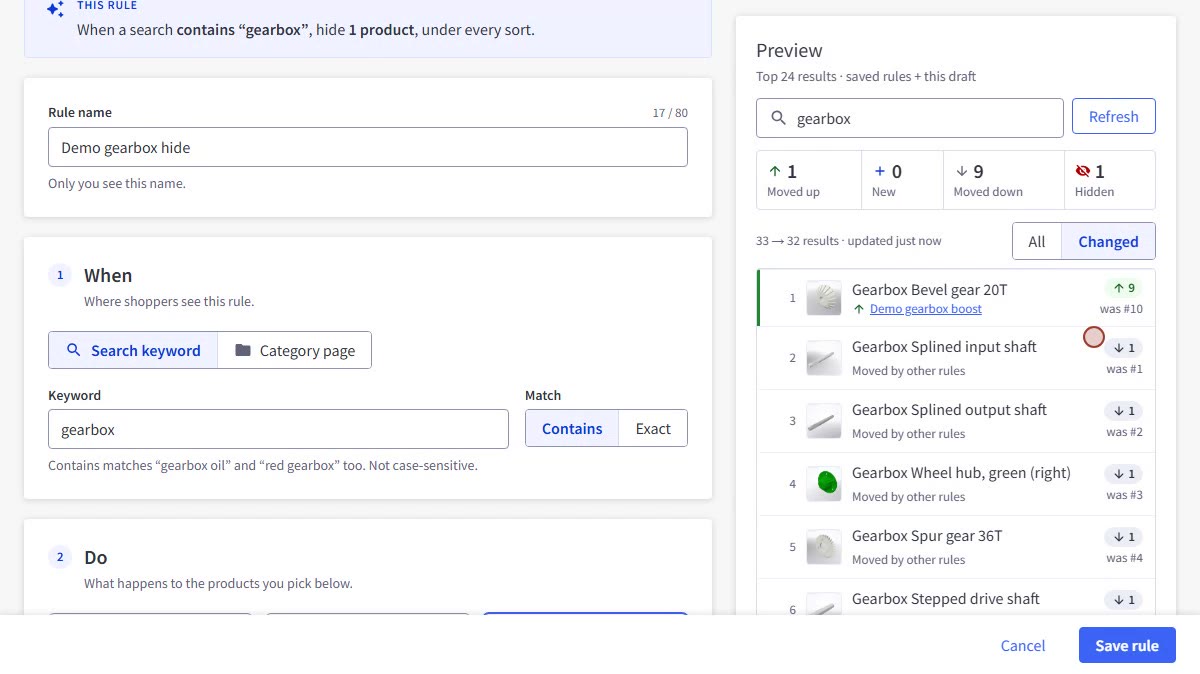
A sentence at the top of the editor sums up the rule as you build it, for example When a search contains "gearbox", show 1 product above all other results. Click Save rule. Changes reach your storefront within a few minutes. If you leave the page with unsaved changes, PapaSearch asks before discarding them.
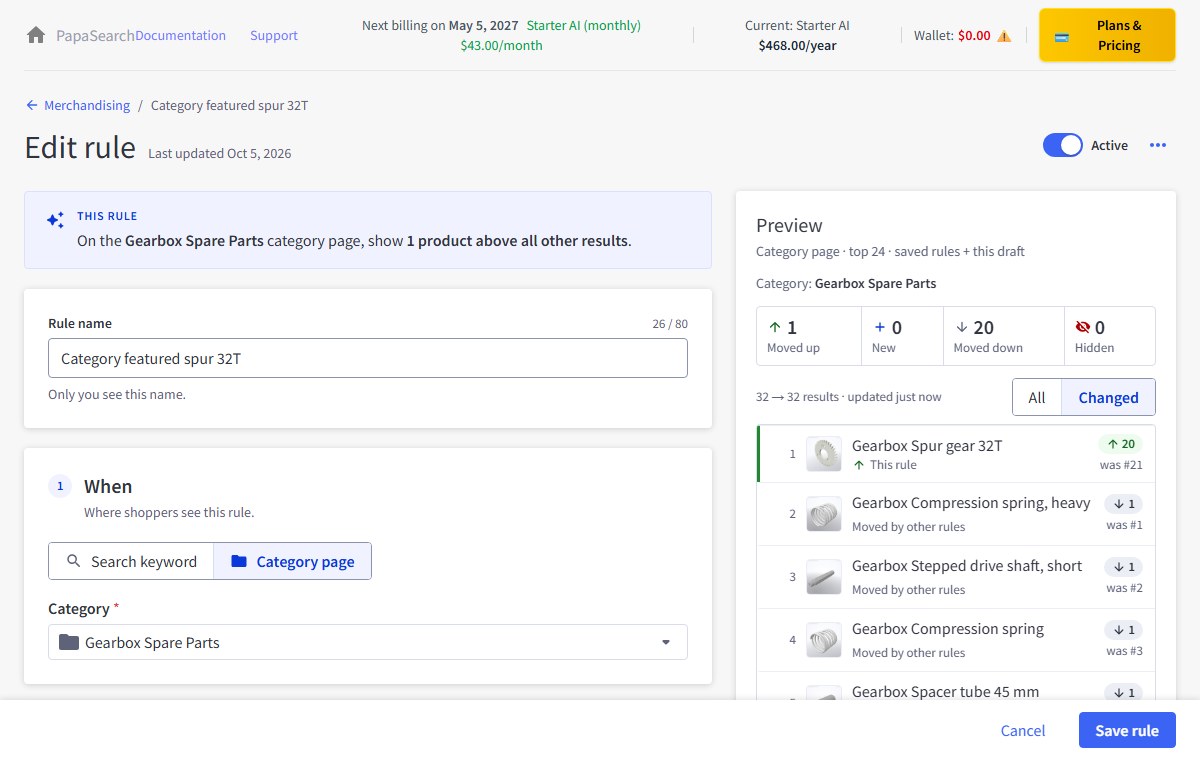
A category page rule applies only when shoppers browse that category. When a shopper searches for a keyword and then filters by that category, only keyword rules apply.
Choosing categories
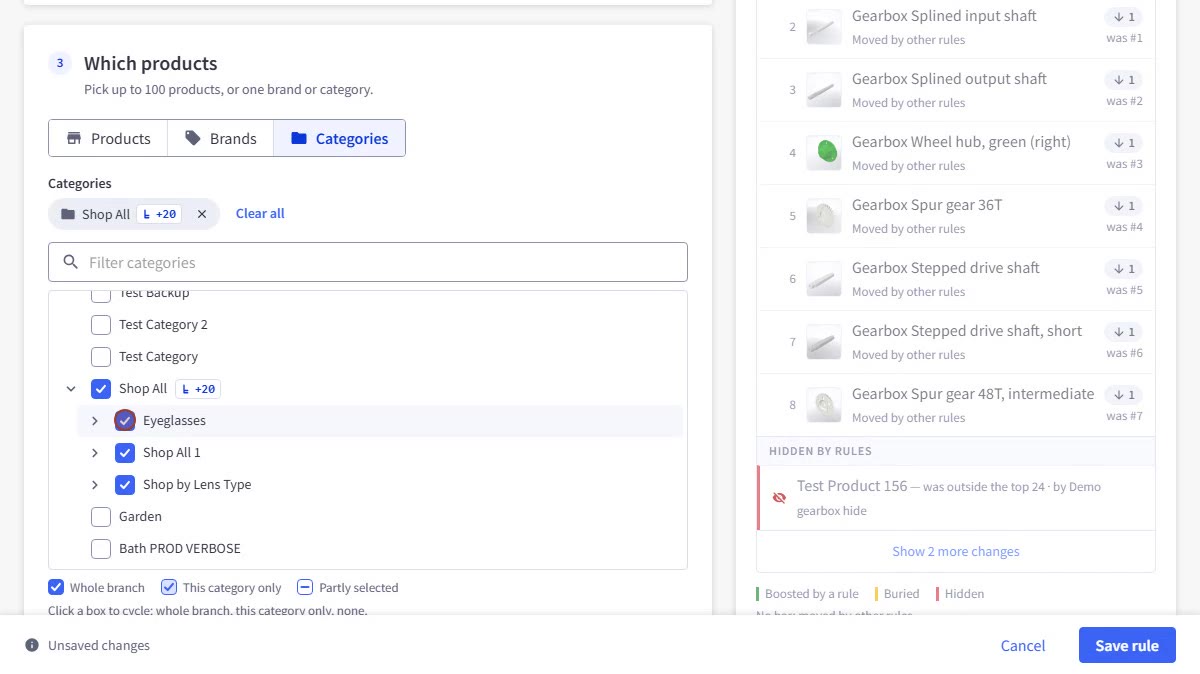
Under Which products → Categories, each category has a box you click to cycle through three choices:
- Whole branch (filled box) — the category and all of its subcategories. The chip shows how many subcategories are included, for example Shop All +20.
- This category only (outlined box) — only products assigned directly to that category, not to its subcategories.
- Not selected.
Categories without subcategories are simply selected or not. A dash on a parent means some of its subcategories are picked. Subcategories inside a whole-branch parent stay clickable: untick one to leave it out, and the parent switches to This category only while its other subcategories stay selected. Tick it again and the branch folds back into one choice. Use the arrows to expand or collapse a branch; when you open a rule, only the branches you picked part of are expanded. Clear all removes every choice.
What each strength does
- High — boosted products are shown above all other results; buried products are shown below all other results.
- Medium and Low — a nudge up or down among results that are about equally relevant. A product that does not match the search well will not jump to the top.
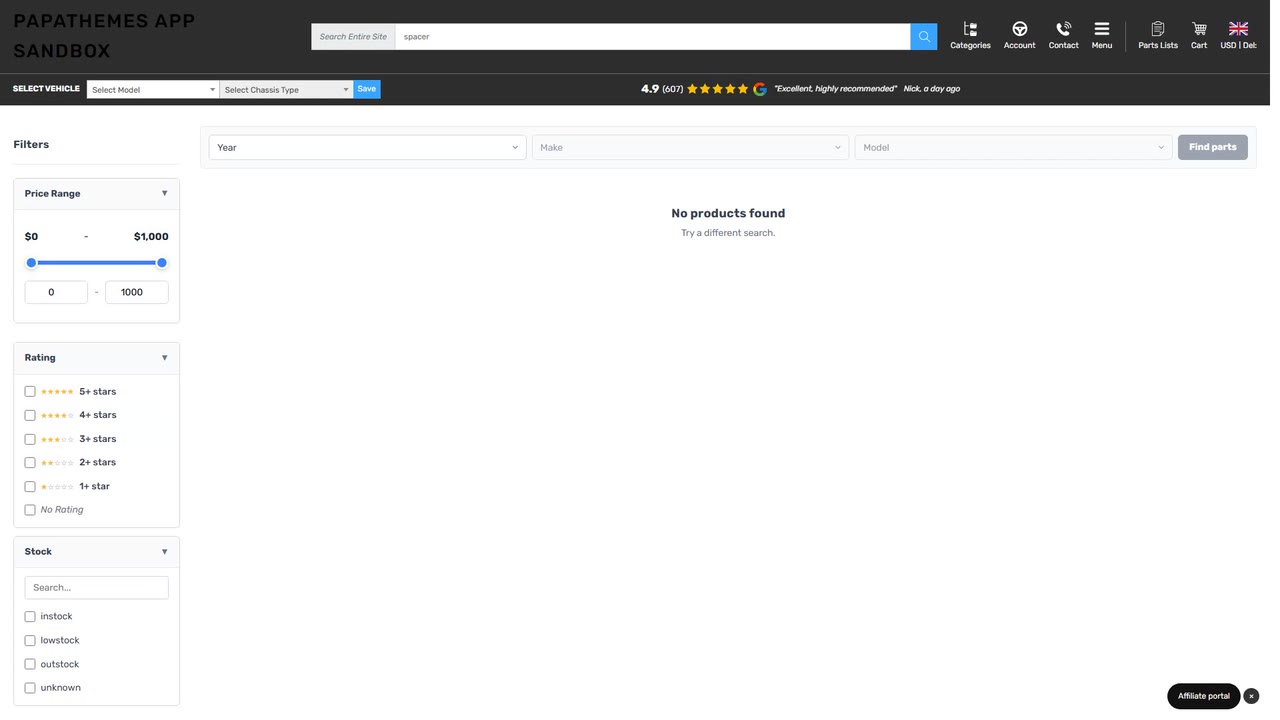
- Hide — the product is removed from the results and from the filter counts, whatever sort the shopper picks. If a Hide rule removes every result, shoppers see No products found instead of the products you hid.
If several rules apply to the same product, they do not add up: a boost always beats a bury, whatever their strengths, and between two boosts (or two buries) the stronger one wins.
When shoppers change the sort
Boosts and buries follow the default Relevance order. When a shopper sorts by Price or Best Selling, the shopper's sort comes first; a boosted product is moved ahead only of products with the same price (or the same sales), and a buried one behind them. Sorting by Name or by date ignores boosts and buries. Hidden products stay hidden under every sort. If Show out-of-stock products last is on, out-of-stock products stay at the end even when boosted.
Order within a rule
When one rule boosts several products, they all move into the top group together, and inside that group they keep their usual relevance order. The order in which you added them to the rule does not matter.
Preview Before You Save
The Preview panel shows the top 24 results with your saved rules plus the draft you are editing. For a search rule it uses your keyword (you can type another search); for a category page rule it shows that category page. Tiles count how many products moved up, are new in the top 24, moved down or are hidden. Switch between All and Changed to see every result or only the ones that moved, each with its previous position and the rule that moved it. Products hidden from beyond the top 24 are listed too, for example "Test Product 156 — was outside the top 24 · by Demo gearbox hide".
Turn Rules On and Off, Edit or Delete
- Use the switch in the Active column to turn a rule off without deleting it. You can always turn a rule off, even if one of its target products has since been deleted.
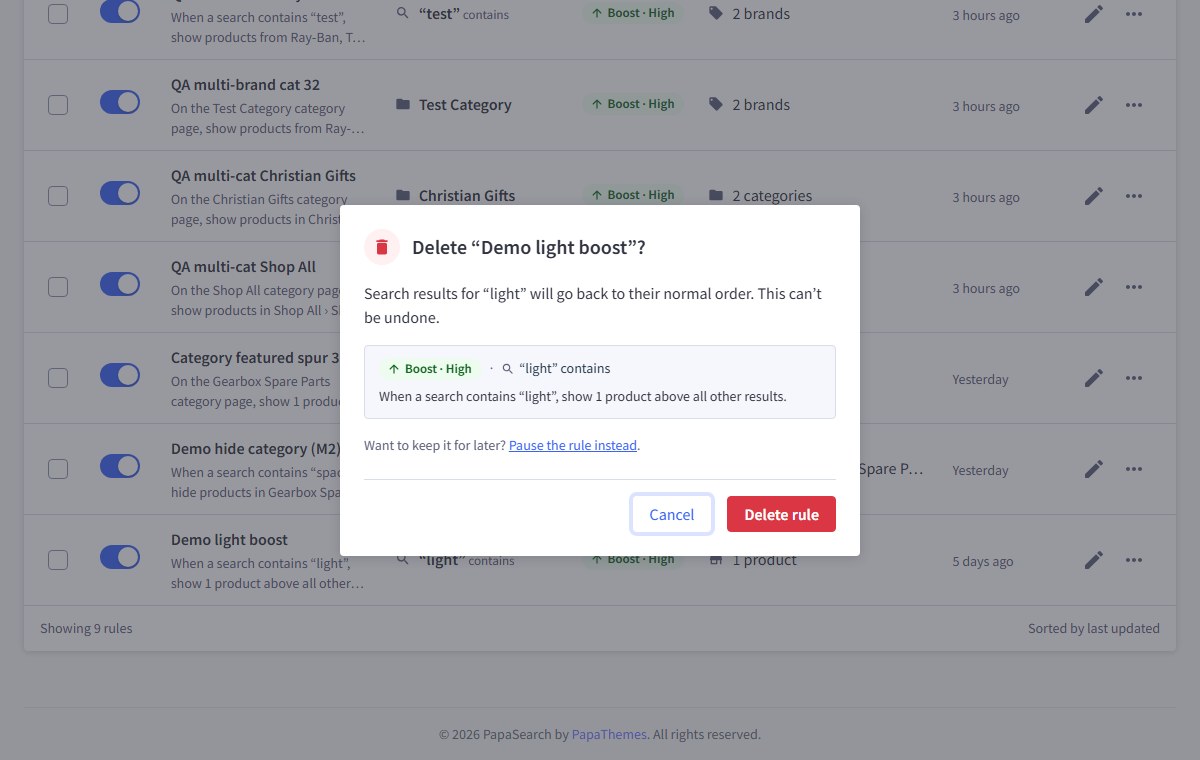
- Click the pencil to edit a rule. The ⋯ menu offers Duplicate, Pause / Activate and Delete. Before deleting, PapaSearch shows a summary of the rule and offers Pause the rule instead.
Good to Know
- Rules apply to the storefront channel you are managing.
- Whole branch includes subcategories. Products added while your category list could not be read may not be picked up by a whole-branch rule until they are re-indexed — use Product Indexes to re-index them.
- Many stores assign products to a parent category as well as to its subcategories. In that case This category only and Whole branch reach the same products.
- A product must be in your product index to be used as a target.