Pin, Boost, Bury and Hide Products in BigCommerce Search
PapaSearch merchandising rules let you decide which products shoppers see first in BigCommerce search results and on category pages.
The full reference is Chapter 15: Merchandising.
The four actions: boost, bury, hide and pin
| Action | What shoppers see |
|---|---|
| Boost | The products move up. |
| Bury | The products move down. |
| Hide | The products are removed from the results and from the filter counts, under every sort. |
| Pin | Each product sits at an exact position, such as #1 or #3, while the other results keep their usual order around it. |
A rule targets up to 100 Products (found by name or SKU), whole Brands, or Categories. Pin rules target products only, up to 20 of them.
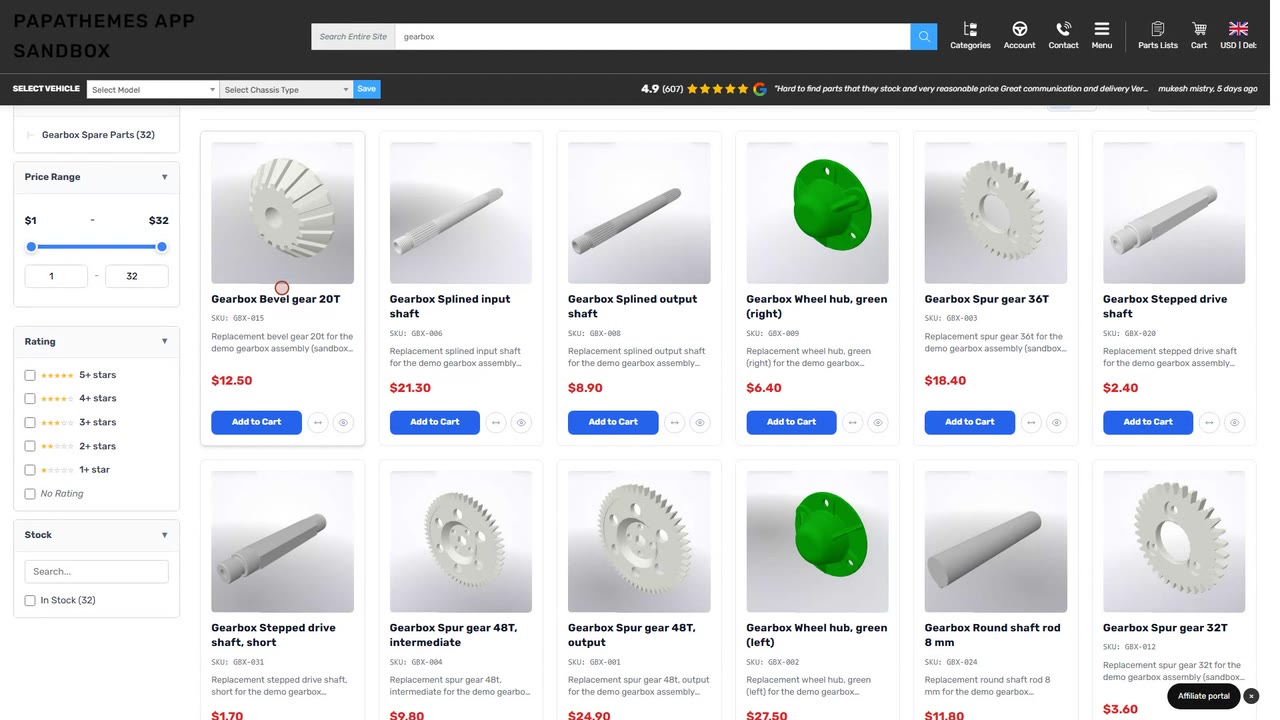
Boost and bury strengths
Boost and Bury come with three strengths:
- High — boosted products go above all other results; buried products go below all other results.
- Medium and Low — a nudge up or down among results that are about equally relevant. A product that does not match the search well will not jump to the top.
When several rules touch the same product, they do not add up. A boost always beats a bury, whatever their strengths, and between two boosts (or two buries) the stronger one wins.
Keyword rules vs category page rules
Each rule has a When:
- Search keyword — the rule applies to searches. With Contains, a rule for
lightalso applies to "led light bar". With Exact, it applies only when the whole search is the keyword. - Category page — the rule applies only when shoppers open that one category page.
If a shopper searches for a keyword and then filters by a category, only keyword rules apply. Category page rules stay on the category page itself.
When you target categories, each category can be the Whole branch (with all its subcategories) or This category only.
Pin products at exact positions
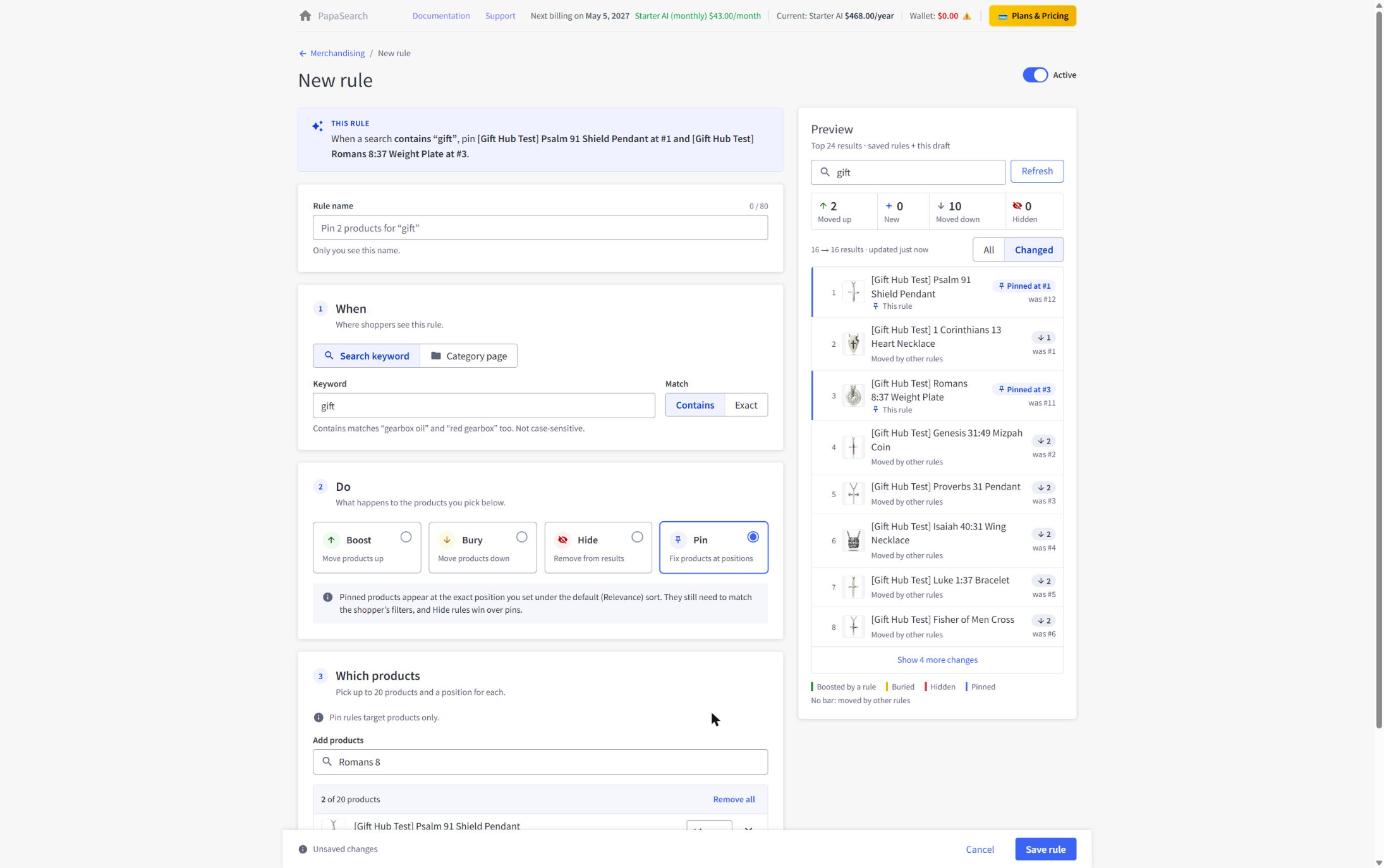
Pin is for "this product must be #1". Add up to 20 products to a Pin rule and give each a Position from 1 to 100. Two products in one rule cannot share a position. The rules to know:
- Relevance sort only. Pins apply to the default Relevance sort, on search and category pages. When a shopper picks another sort, pins are not applied.
- Filters still apply. A pinned product does not need to match the search, but it must pass the category, the filters the shopper picked, visibility and your stock settings. If it does not, its position goes to the next normal result.
- Hide wins. A Hide rule always beats a pin.
- If Show out-of-stock products last is on, an out-of-stock pinned product is not pinned.
- If two rules claim the same position, the rule created first keeps it and the other product moves to the next free position.
- Each page still shows the usual number of products, a pinned product never appears twice while paging, and filter counts do not include pins.
Keep this order for boosted products
If you want a group of products at the top in a set order but do not need exact positions, use Keep this order. It appears on Boost rules with strength High that target Products. Drag the products (or use the arrows) into order; shoppers see them at the very top, in your order, above other High boosts. Like other boosts, the order applies to the default Relevance sort.
Set up a merchandising rule
- From the PapaSearch Dashboard, click Merchandising, then Add rule.
- Give the rule a Rule name you will recognise in the list.
- Under When, choose Search keyword (and enter the keyword with Contains or Exact) or Category page (and pick the category).
- Under Do, choose Boost, Bury, Hide or Pin. For Boost and Bury, choose a Strength.
- Under Which products, add products, brands or categories. For Pin, set a position for each product. For a High boost on products, tick Keep this order if the order matters.
- Optionally fill in the Schedule card with a Start and End to run the rule only for a sale or a launch.
- Check the Preview on the right, then click Save rule. Changes reach your storefront within a few minutes.
Preview before you save
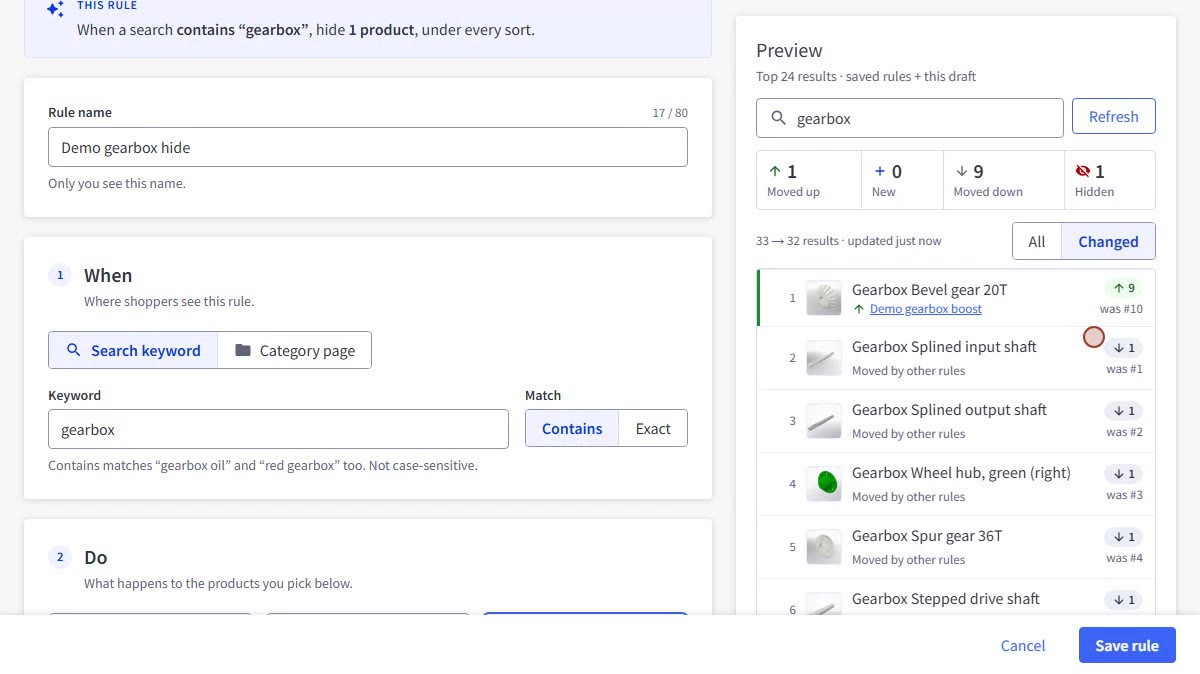
The Preview shows the top 24 results with your saved rules plus the draft you are editing. Tiles count how many products moved up, are new in the top 24, moved down or are hidden. Switch to Changed to see only the products that moved, each with its previous position and the rule that moved it. Pinned products are marked Pinned at #N, and a pinned product that does not reach the top 24 is listed with the reason, for example Doesn’t match the current filters or category.
FAQ
How many merchandising rules can I have?
Up to 200 rules per storefront channel. The counter above the rules list shows how many you use.
What happens to boosts when a shopper sorts by price?
The shopper's sort comes first. A boosted product moves ahead only of products with the same price (or the same sales for Best Selling, or the same rating for Top Rated). Sorting by Name or by date ignores boosts and buries. Hidden products stay hidden under every sort.
What if a Hide rule removes every result?
Shoppers see No products found instead of the products you hid.
Does the order I add products to a normal boost rule matter?
No. Boosted products move into the top group together and keep their usual relevance order inside it. Use Keep this order or Pin when the order matters.
Can I turn a rule off without deleting it?
Yes. Use the switch in the Active column, or Pause from the ⋯ menu. Deleting a rule also offers Pause the rule instead.
Read next: Chapter 15: Merchandising for every option, and Schedule Black Friday merchandising to time rules for a sale.